
How to Set Up and Use StreamHub Media Player: A Step-by-Step Guide
Welcome to the ultimate multi-device media player guide for StreamHub. StreamHub is a high-performance application designed for seamless playback. It handles complex media libraries with ease on your phone, tablet, or Smart TV. Follow this guide to unlock the full potential of your media collection in minutes.
Phase 1: Installing StreamHub on Your Devices
The first step in your M3U player setup is getting the app on your hardware. StreamHub is currently optimized for Android and Android TV ecosystems. Open the Google Play Store on your device and search for "StreamHub." Click install and wait for the application to download to your local storage.

Once installed, open the app to begin the initial configuration process. You may be asked for basic permissions to ensure smooth video rendering.
Phase 2: Adding Your Media Playlists
StreamHub acts as a sophisticated shell for your own digital content. There are two primary ways to import your media libraries into the player.
Method 1: Using the Xtream Codes API
The Xtream Codes API is the most efficient way to sync large libraries. It automatically organizes your channels, movies, and series into logical categories.
- Select "Add Profile" from the main screen.
- Choose the "Xtream Codes API" option.
- Enter your provider's server URL, username, and password.
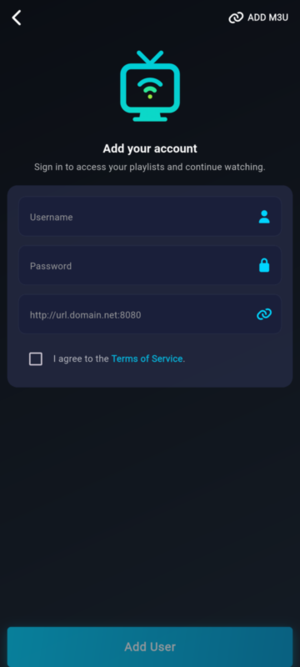
Method 2: M3U URL Integration
If you prefer using a single file link, the M3U method is straightforward. Simply copy your playlist URL and paste it into the "M3U URL" field. Give your playlist a recognizable name, such as "Home Library." Click "Add Profile" to let StreamHub parse the file and build your dashboard.
Phase 3: Navigating the Universal UI
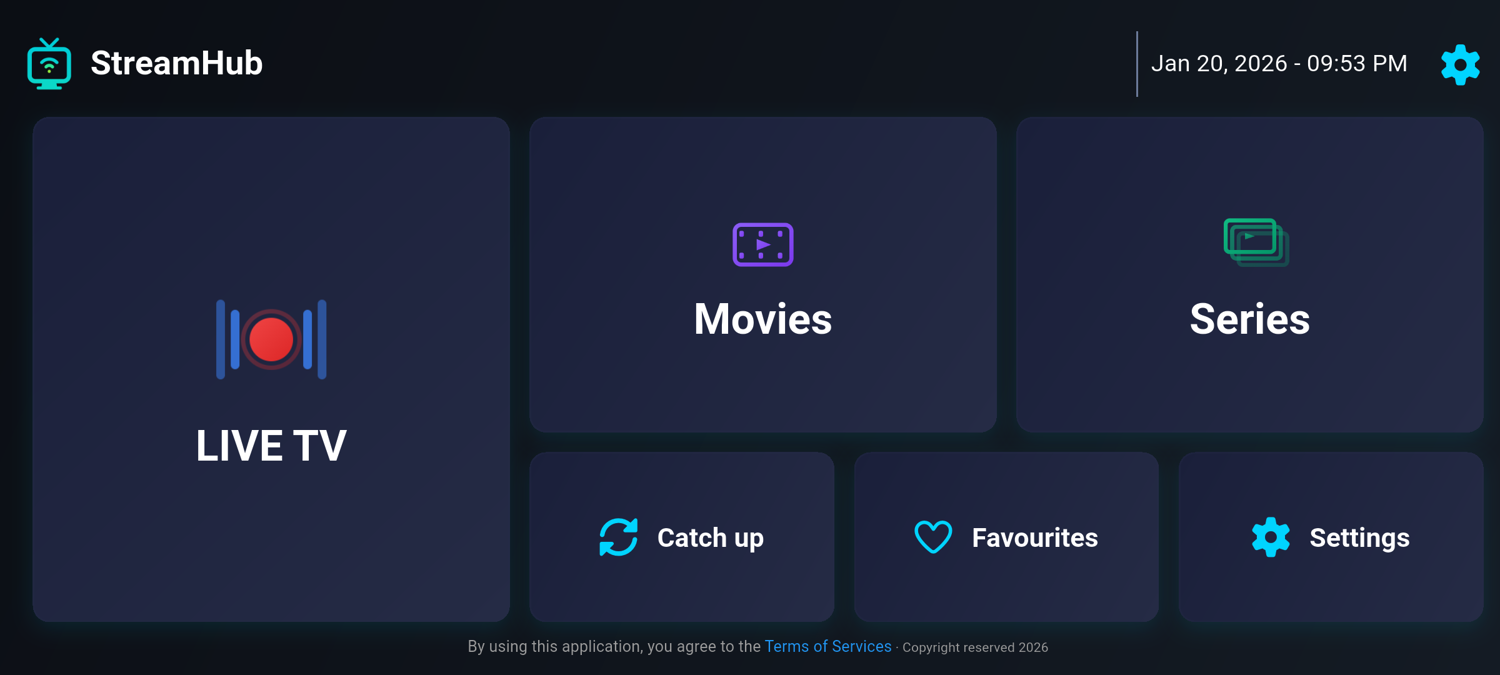
StreamHub features a "Leanback" interface designed specifically for remote control use. The home screen is divided into three core pillars: Live TV, Movies, and Series.
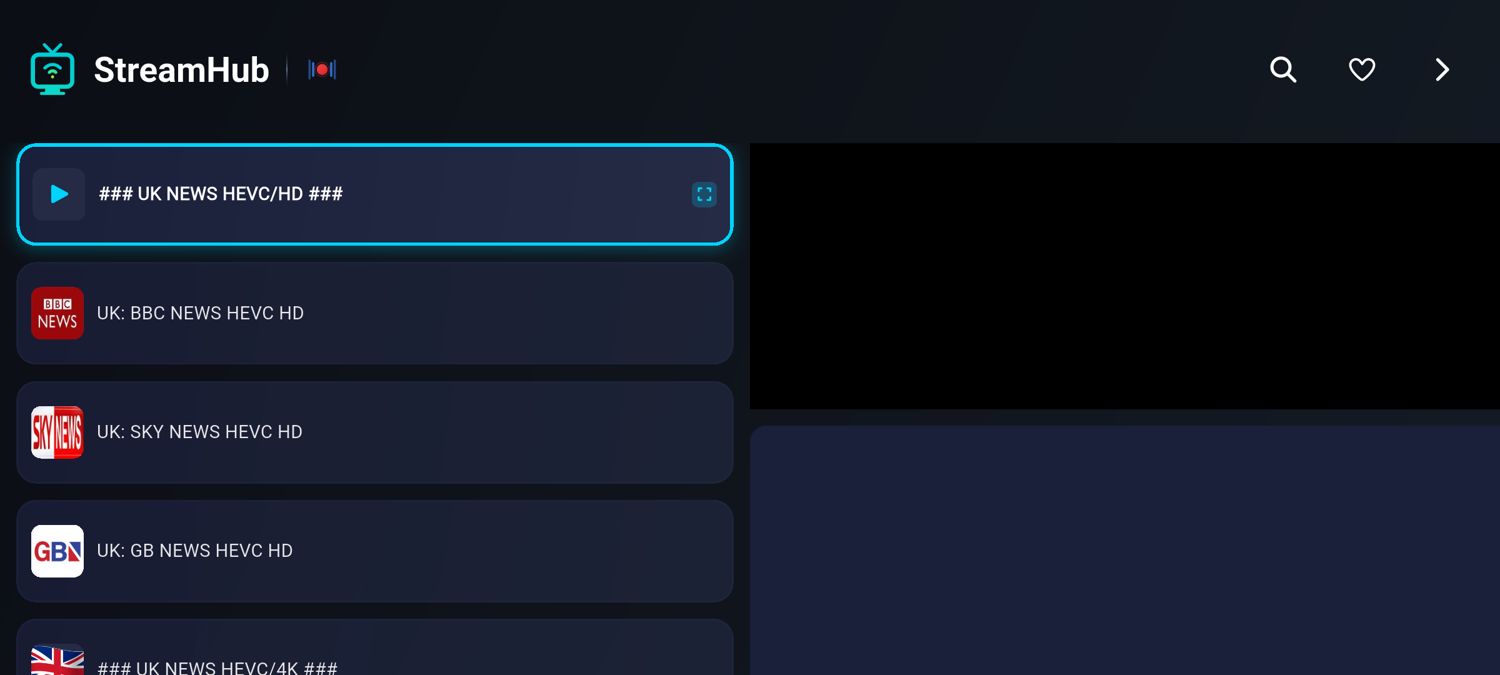
Live TV Dashboard
Access real-time broadcasts with an integrated EPG (Electronic Program Guide). The guide helps you see what is currently playing and what is coming up next.
Movies and Series VOD
Your video-on-demand content is organized with high-quality posters and metadata. StreamHub automatically fetches descriptions and ratings for a premium experience.
Phase 4: Optimizing Playback and Settings
To get the best quality, you should review your internal playback settings. StreamHub supports advanced H.264 and HEVC (H.265) decoding for 4K content.
- Navigate to the "Settings" gear icon.
- Under "Player Settings," ensure "Hardware Acceleration" is enabled.
- This ensures your device’s GPU handles the heavy lifting for smooth video.
Phase 5: Troubleshooting Common Connection Issues
If your library fails to load, check your internet connection first. Ensure the server URL you entered is exactly as provided by your media source. Small typos in the URL or password are the most common cause of setup errors. If the app feels slow, try clearing the cache in the settings menu.
Conclusion
You have successfully completed the M3U player setup for StreamHub. This multi-device media player guide ensures you have a consistent experience everywhere. Enjoy your favorite content with the fastest navigation and highest quality available. If you have more questions, visit our support section for deeper technical tips.